
Restore old photos with Nano Banana 2.1
Upload a scan of an old photograph and describe the repair: scratches and dust gone, faces sharpened naturally, color added, the original composition kept. Nano Banana 2.1 handles the whole job in one edit.
기본 15 + 참조 이미지 0 + 프롬프트 0 = 15 크레딧
참조 이미지와 긴 프롬프트에는 크레딧이 추가될 수 있습니다. 생성하기 전에 합계가 표시됩니다.
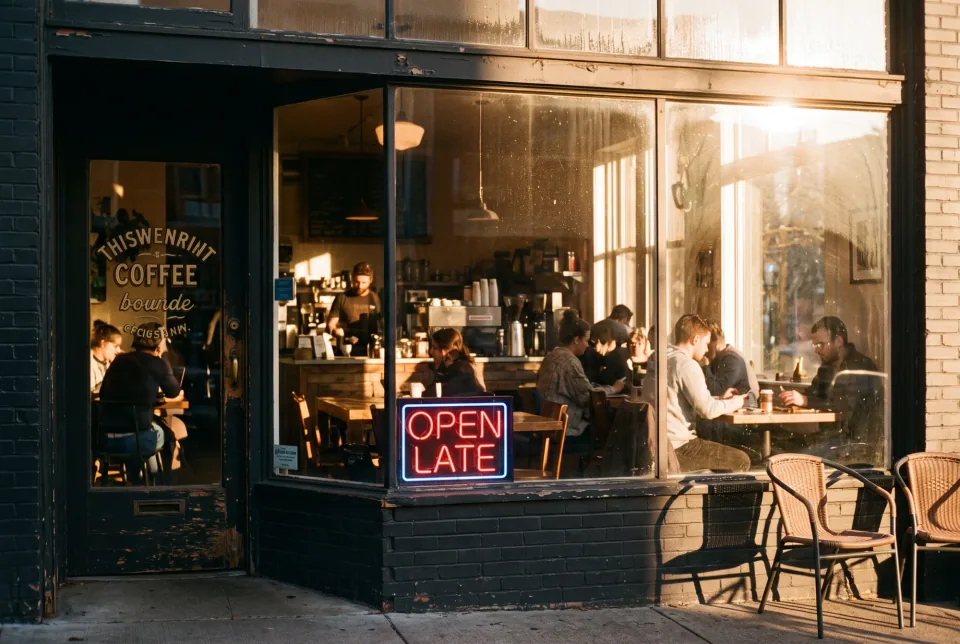
예골든 아워의 아늑한 커피숍, 35mm 필름 사진, 창문을 통해 들어오는 따뜻한 빛, "OPEN LATE"라고 적힌 창문의 네온사인
실제 결과
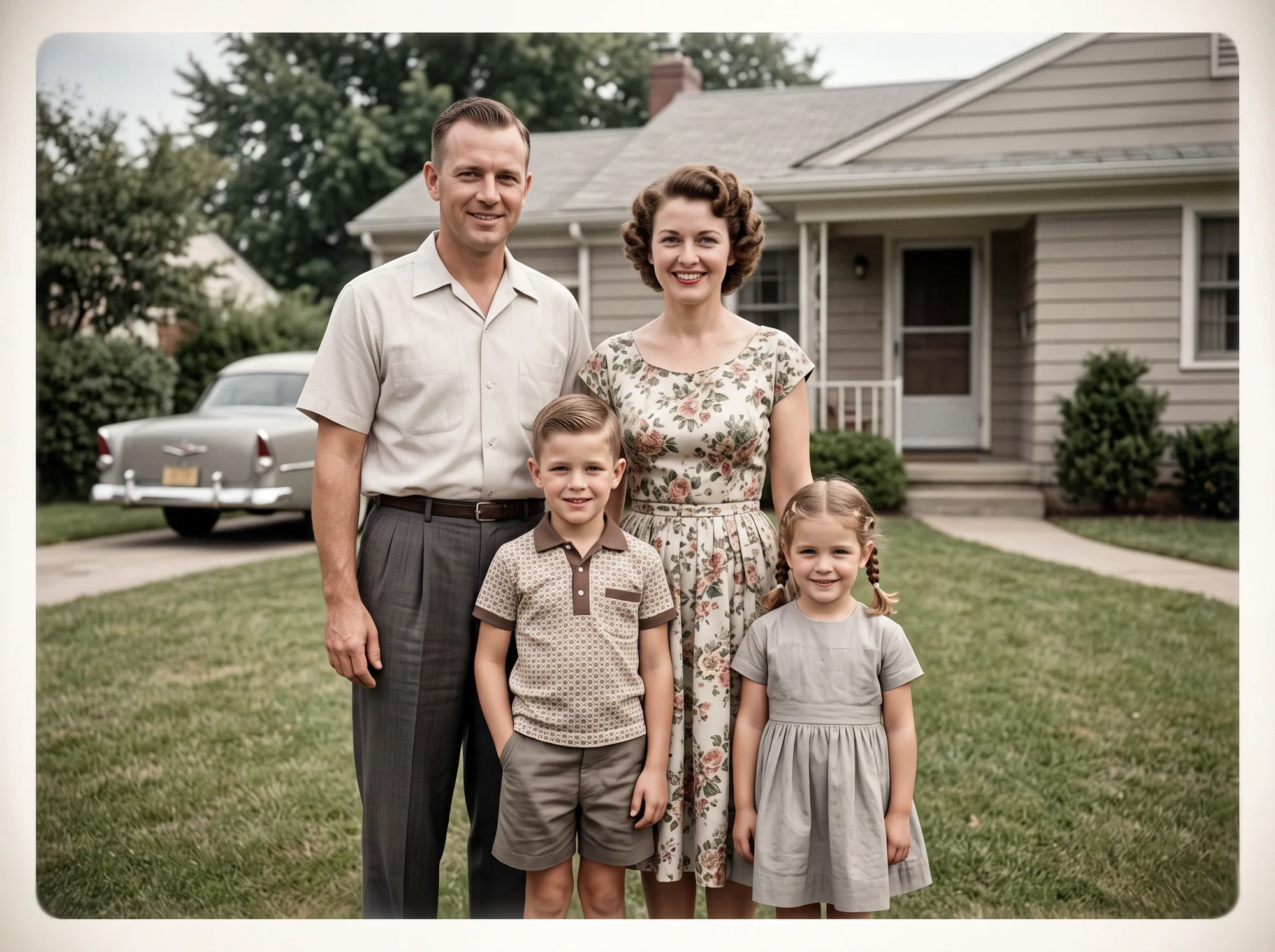
A 1950s family portrait, restored
Scratches and dust removed, faces sharpened, gentle colorization, vintage composition kept. This example was generated from a text description of a restored portrait.
이 이미지에 사용한 프롬프트 · 4:3
Restored 1950s family portrait photograph, a mother, father and two children in front of a house, scratches and dust removed, faces sharpened naturally, realistic gentle colorization, original vintage composition kept.
시도해 볼 프롬프트
Full restoration
사진이 필요합니다The all-in-one prompt for most family photos.
Restore this old photo: remove scratches and dust, sharpen faces naturally and add realistic color while keeping the original composition.
Colorize a black and white photo
사진이 필요합니다Natural, period-correct colors.
Add natural, realistic color to this black and white photo. Keep skin tones believable and the clothing colors plausible for the period, and do not change the composition.
Repair tears and folds
사진이 필요합니다Also fills a missing corner.
Repair the tears, folds and stains in this photograph and fill the missing corner so it matches the surrounding image. Keep every face as it is.
Sharpen blurry faces
사진이 필요합니다Keeps the grain so it does not look plastic.
Sharpen the faces and fine detail in this blurry old photo without making them look artificial. Keep the original grain and composition.
What the model can and cannot do
It is very good at removing damage that has a pattern: dust, scratches, creases, stains and fading. It can also add plausible color and recover edges in soft faces.
Colorization and sharpening are reconstructions, not recovered facts. The model infers colors and details from context, so the result is a convincing restoration, not an archival record. Keep your original scan and compare faces with other photos of the same person.
Get a good scan first
A flat scan at 300 dpi or more gives better results than a phone photo of a glossy print. Avoid glare and shadows, and crop away the table. If a print is bent, scan the two halves in sequence and restore each one.
진행 방법
- 01
Upload the scan
Choose Image to Image and add one photo. Keep the ratio on Auto so the proportions of the original are preserved.
- 02
Pick the repair
Start with the full restoration prompt. Use the colorize, repair or sharpen prompts when you need only one of those.
- 03
Compare and refine
Check the faces first. A 1K result costs 15 credits, and you can render the keeper at 2K (25) or 4K (50) for printing.
팁
Say what must stay
Keep the original composition, faces and clothing. This avoids creative changes you did not ask for.
Restore in two passes for heavy damage
Repair the tears first, then colorize. Each step is easier to check.
Always keep the original
Store the untouched scan next to the restored version.
자주 묻는 질문
- Will the faces still look like my relatives?
- The prompt asks the model to sharpen faces naturally and keep them as they are. Compare the result with other photos of the same person, and rerun if anything has drifted.
- Can it colorize black and white photos?
- Yes. The colors are inferred, so they are plausible rather than historically exact. You can describe known colors, like a red dress, in the prompt.
- Are my family photos private?
- Yes. Results go to your private My Images history and never appear in a public gallery. You can delete any of them at any time.
더 알아보기
첫 번째 Nano Banana 2.1 이미지 만들기
만들고 싶은 첫 이미지를 설명하고 생성 전에 필요한 총 크레딧을 확인하세요.